How to Use the Wake-Up Check
Still snoozing even after finishing your alarm mission? Wake-Up Check helps make sure you actually got up!
Wake-Up Check is a feature in Awake that gives you an extra layer of accountability after your alarm. A few minutes after accomplishing your mission, Awake will check in with you to ensure you actually got up and otherwise let your alarm go off again.
In this article you will learn how to enable and customize your Wake-Up Check.
Wake-Up Check requires ⭐️ Awake Pro.
Enable Your Wake-Up Check
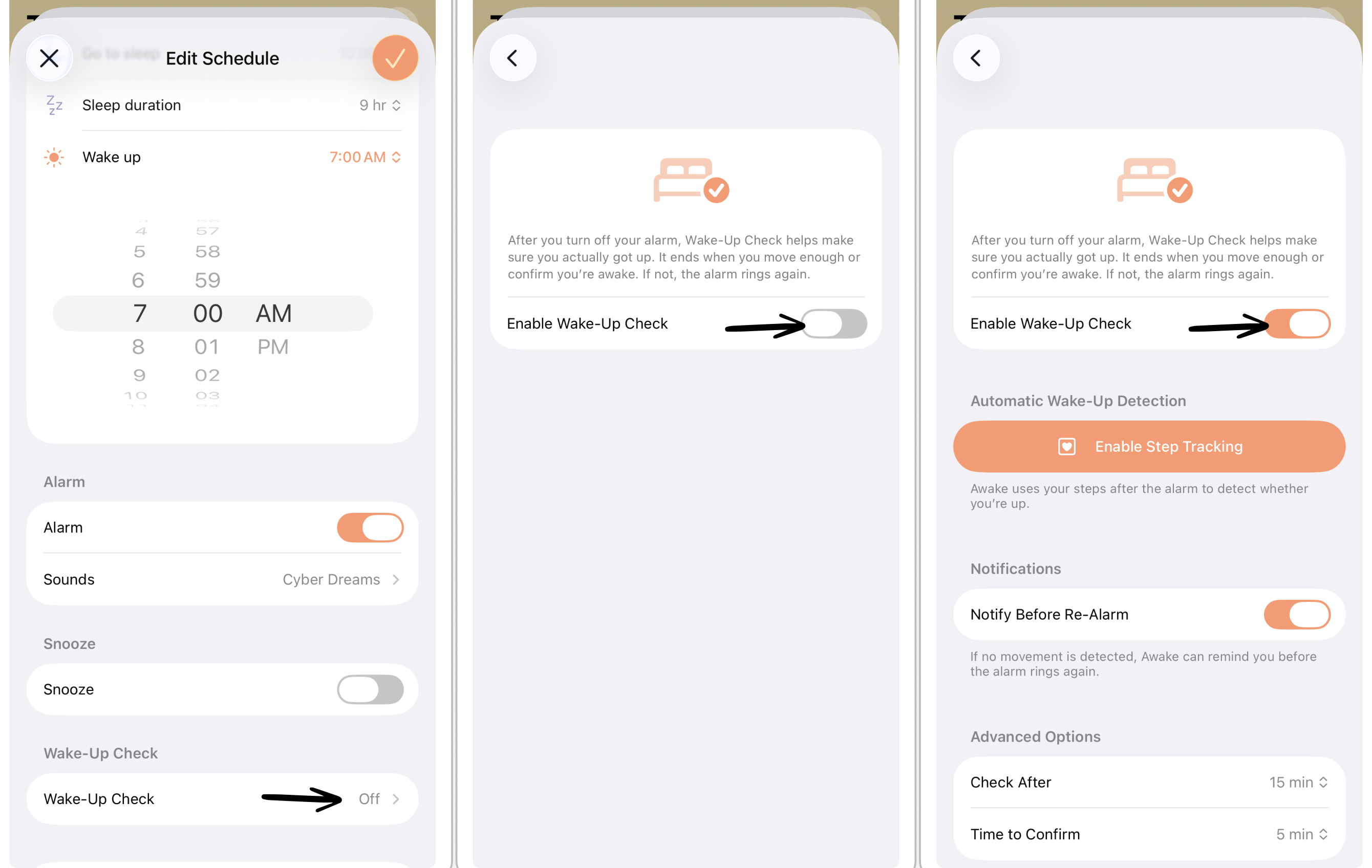
In order to enable the wake-up check:
Select the three dots in the top-right corner and select Schedules.
Select the respective alarm schedule you want to add the Wake-Up Check to.
Scroll down to the Wake-Up Check section and tap on it.
Toggle Enable Wake-Up Check on.
Now, by default, 15 minutes after turning off your alarm, Awake will check in with you to see whether you are actually awake and send a reminder. You can always go into Awake and disable the re-alarm.
If you don't confirm you are awake within 5 minutes, your alarm will go off again, and you will have to accomplish a wake-up mission to turn off the alarm.
Customize Your Wake-Up Check
Once the Wake-Up Check is enabled, you can further customize it.
For example, you can enable automatic wake-up detection based on your physical movement. Moreover, you can adjust whether you'd like to be notified about the re-alarm and how long it will take until your alarm goes off again.
Automatic Wake-Up Detection
When granting Awake access to Apple Health, Awake uses your steps after the alarm to detect whether you're up. In this case, you won't have to disable the Re-Alarm.
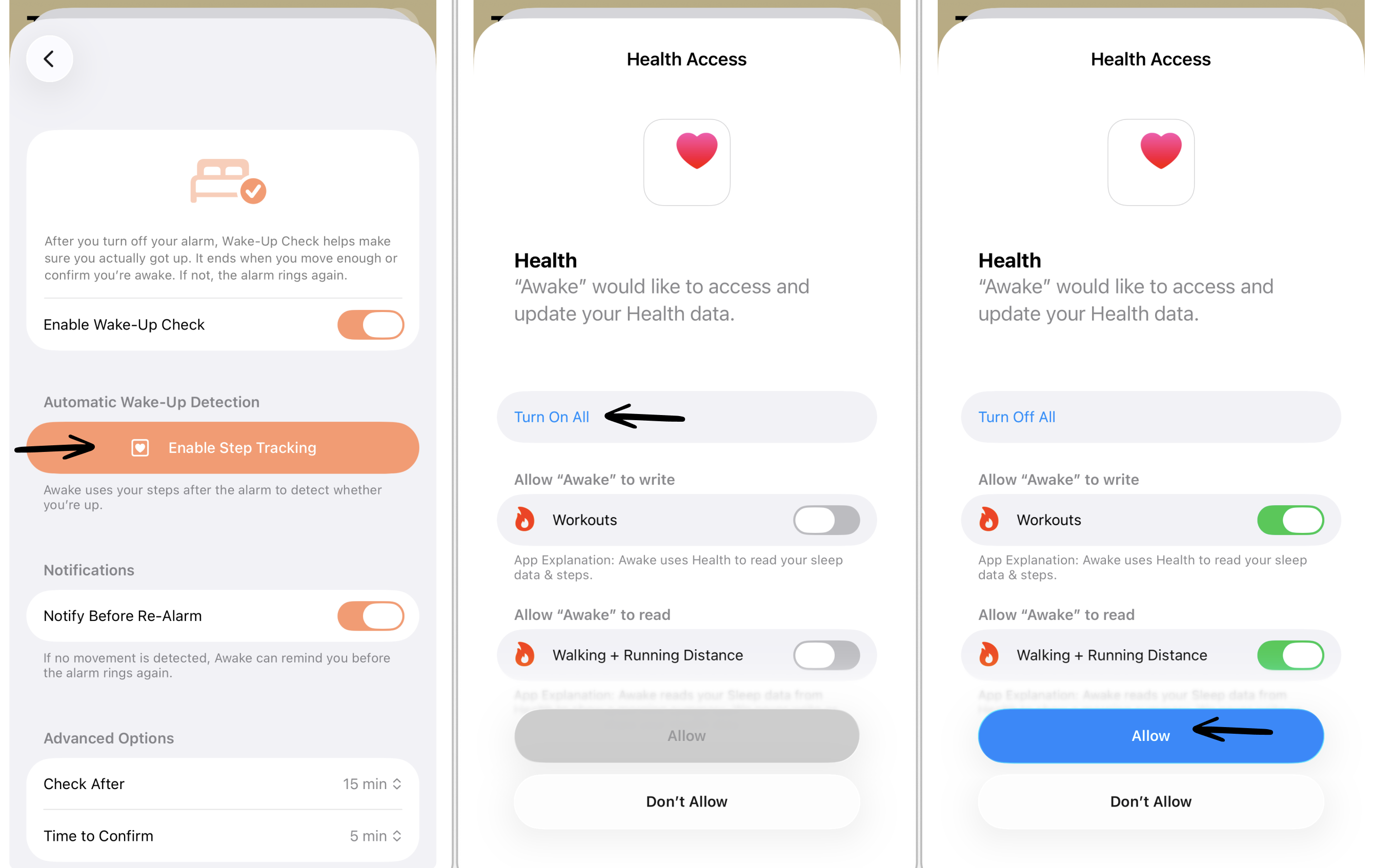
To enable automatic wake-up detection:
Open your Wake-Up Check settings.
Tap Enable Step Tracking.
This will open your Apple Health settings. Select Turn On All and tap Allow.
You can manage Awake's access to your Apple Health data in your Apple Health settings.
Notifications
If you don't disable the re-alarm or no movement is detected, Awake can remind you before the alarm rings again. By default, notifications are enabled.
Advanced Options
You can customize your Wake-Up check even further.
Check After: How long after your alarm do you wish Awake to check if you are actually still up? The default is set to 15 min.
Time to Confirm: How long you have to confirm you're awake before the alarm rings again. The default is set to 5 min.
Require Mission on Re-Alarm: If you don't confirm in time and the alarm rings again, you can choose whether completing a mission is required to turn it off. Toggle this on to enable it.