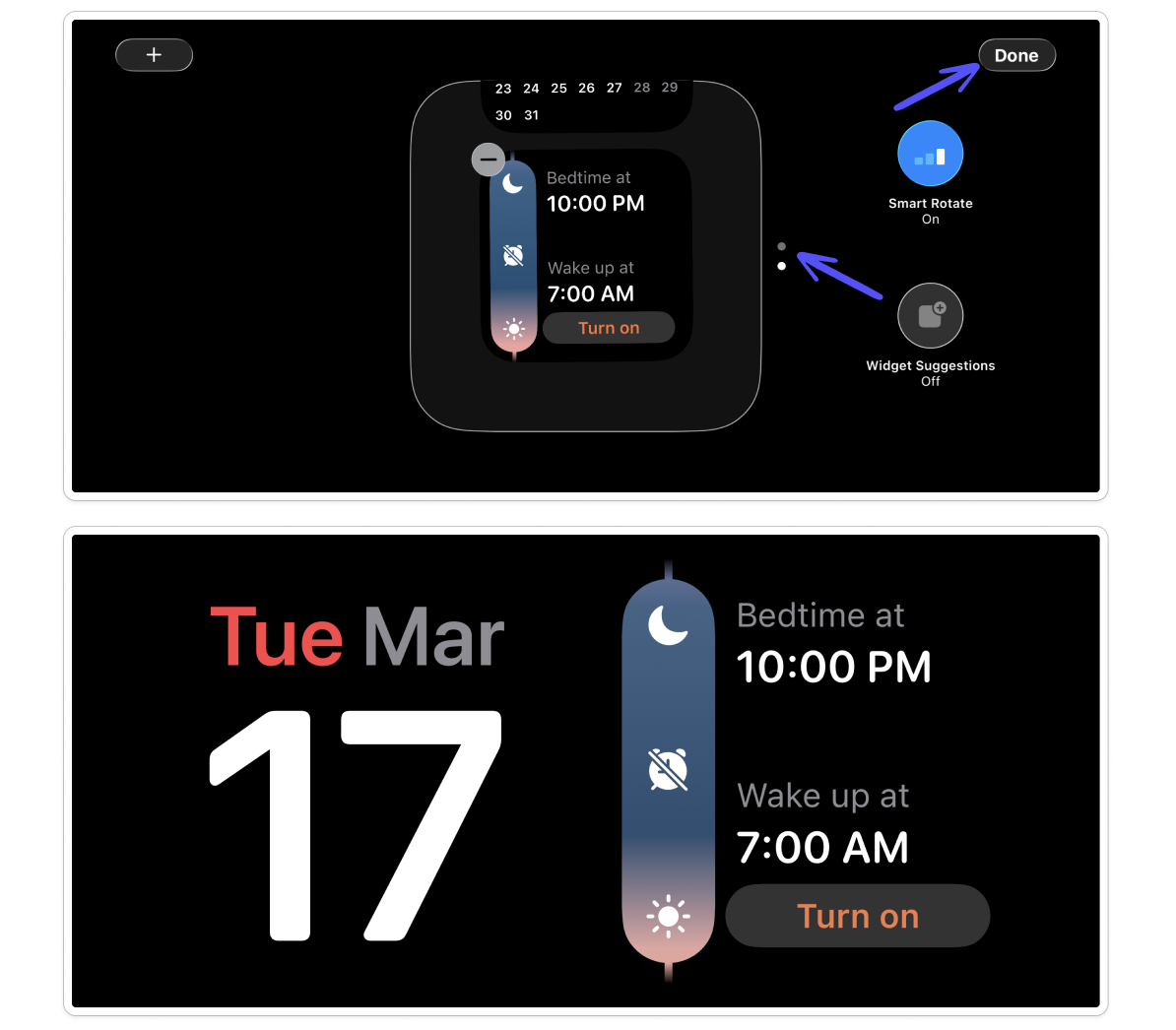
How to Use Awake in StandBy Mode
With iOS 17 or later, your iPhone will automatically enter StandBy mode when your iPhone is charging and in a horizontal position. Here, your phone can display the time, pictures, or widgets. The Awake widget allows you to quickly confirm your bedtime and alarm status.
Below, you can learn how to add an Awake widget to your StandBy mode.
Activate StandBy Mode
StandBy Mode is enabled on your iPhone by default. When your iPhone is charging and placed horizontally, it will automatically enter StandBy Mode.
Alternatively, you can enable or disable StandBy Mode in your iPhone’s ⚙️ Settings app in the StandBy section. In this section, you can also enable Night Mode, which reduces brightness and applies a red tint to the screen at night, making it easier on your eyes.
Awake in StandBy Mode
To enable the Awake widget in StandBy Mode:
Make sure your iPhone is charging and placed horizontally so that it enters StandBy Mode.
By swiping horizontally, you can switch between three different screens, displaying either the clock, photos, or widgets. Swipe horizontally until you reach the Widgets screen.
The Widgets screen contains two separate widgets — one on the left and one on the right. Tap and hold the side where you want the Awake widget to appear to enter the editing mode.
Tap the + button in the top-left corner.
Select Awake from the list of apps and choose the Awake widget.
Tap Add Widget, then tap Done.
Once added, you can swipe vertically through the widget stack to display the Awake widget. You can also interact with Awake in StandBy Mode, e.g. to turn on your alarm.