
How to Use Awake Controls
With iOS 18 or later, Apple allows users to customize Control Center with quick actions. This makes it easier to manage your alarms using an Awake control. For example, you can quickly enable or disable your upcoming alarm directly from Control Center.
Currently, there is 1 type of Awake control.
How to Add an Awake Control
Open Control Center by swiping down from the top-right corner of your screen. From there, you can customize the controls based on your preferences.
To add an Awake control:
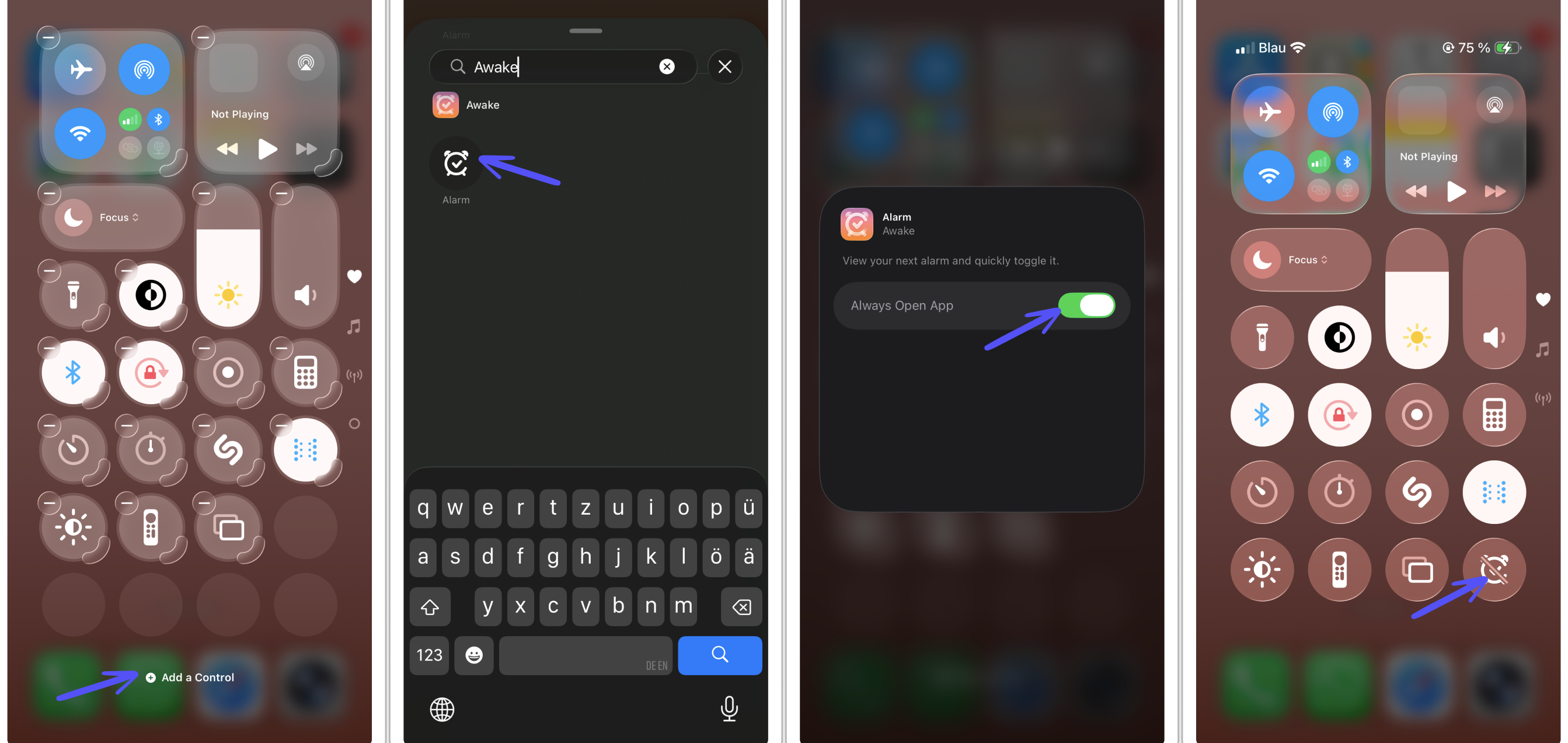
Enter editing mode by tapping the + button in the top-left corner or by long-pressing an empty area in Control Center.
Tap Add a Control at the bottom of the screen.
Search for Awake and add your Awake control.
(Optional) Tap the Awake control while in editing mode to adjust its settings. Here you can enable Always Open App, which will open the Awake app whenever you tap the control instead of toggling the alarm directly.
(Optional) If you expand the Awake control, it will display additional information about your alarm status, such as the scheduled alarm time or a reminder that no alarm is currently set.
How to Use Awake Controls
Open Control Center by swiping down from the top-right corner of your screen and tap the Awake control.
The control will display different information depending on the status of your alarm.
Alarm set:
If an alarm is scheduled, the control shows an orange alarm clock with a checkmark. This indicates that your upcoming alarm is active. Tap the control to deactivate the alarm.Alarm deactivated:
If your alarm is turned off, the control shows a gray alarm clock with a diagonal line through it. This indicates that the alarm is currently inactive. Tap the control to activate the alarm again.No alarm set:
If no alarm is scheduled, the control shows the same gray alarm clock icon with a diagonal line through it. Tap the control to open Awake and set up an alarm.