How to Add an Awake Widget
The Awake widgets provide you with a convenient way to keep track of your bedtime and alarm without having to open the Awake app. You can choose from a selection of different types of widgets, depending on what helps you to stay organized and what best fits into your home screen or lock screen.
1. Home Screen Widgets
Home screen widgets give you a quick overview of your upcoming bedtime and alarm directly from your home screen without opening the Awake app.
1.1 Home Screen Widget Types
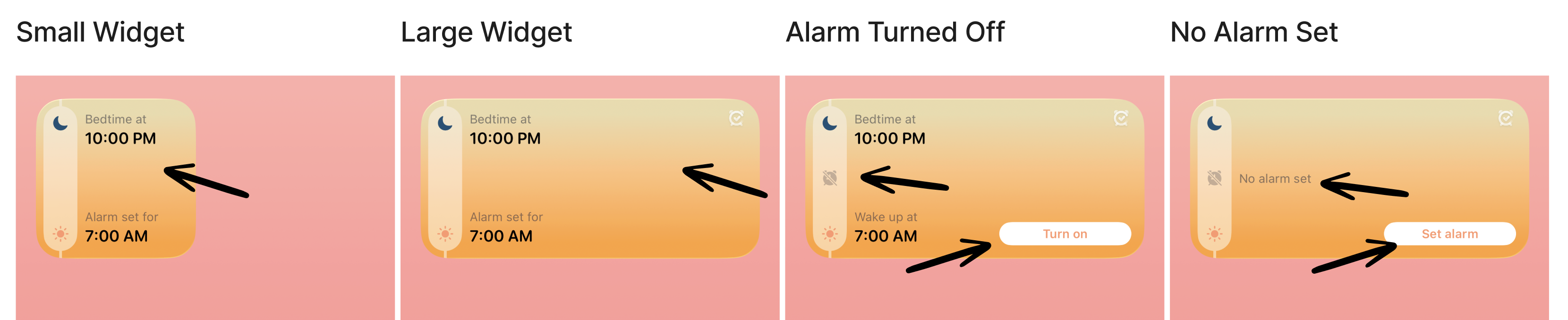
There are several widget types you can add to your home screen, depending on your preferences.
Depending on whether you have enabled an alarm or not, the widget will show when the alarm is set, when the alarm is deactivated, and when no alarm is set. You can interact with the widgets, e.g., to turn on or set an alarm.
Time States
The Awake widget automatically adapts its appearance depending on the time of day. It changes between sunrise, day, dawn, and night to match your current environment.
1.2 Add Home Screen Widget on iPhone
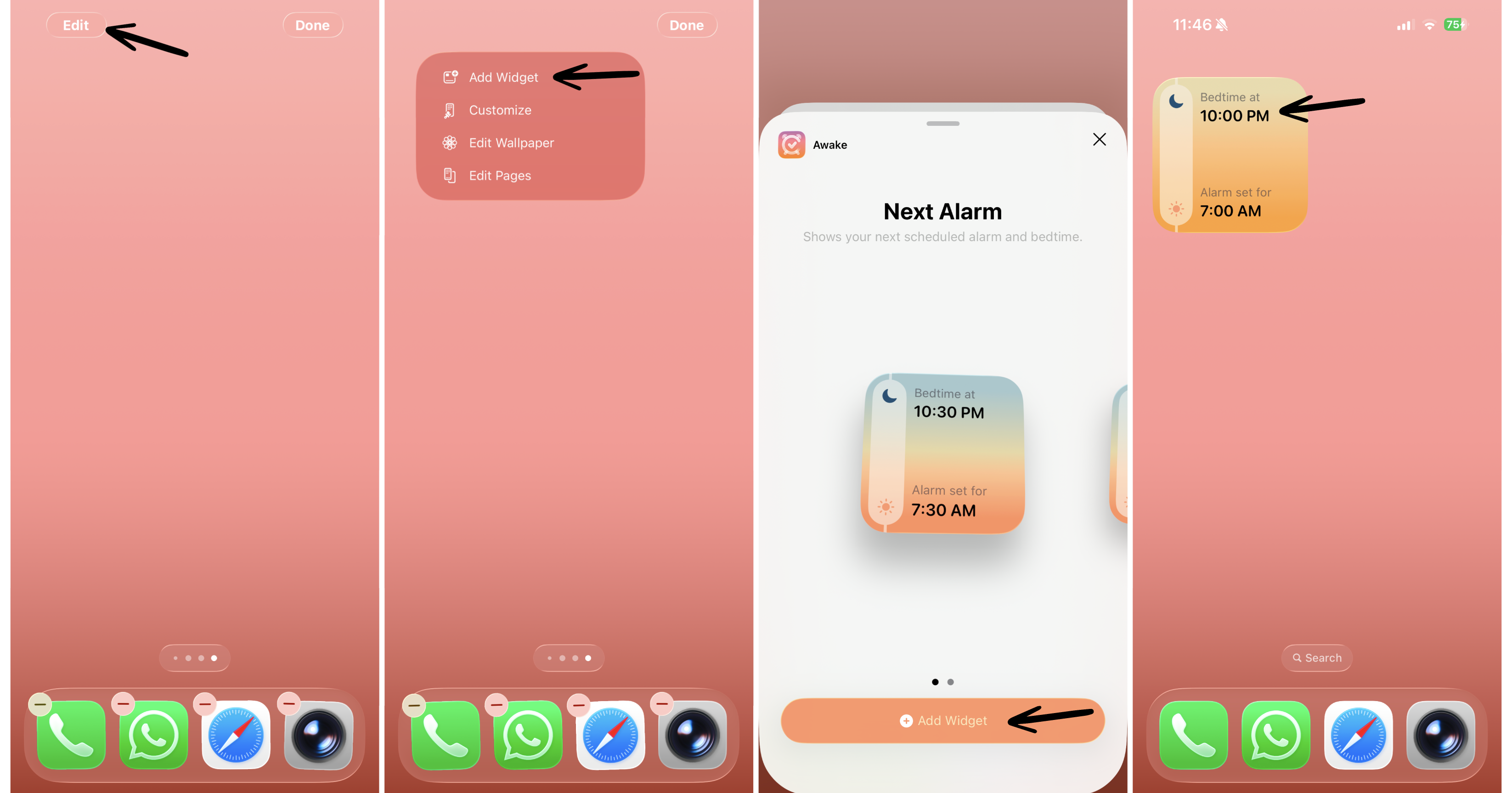
To add an Awake widget on your iPhone's home screen, follow these simple steps:
When you are on your home screen, tap and hold an empty area until the apps jiggle.
Tap the Edit button in the top-left corner and tap Add Widget.
Select Awake from the list of apps, choose a widget size, and tap + Add Widget.
Place the widget on your home screen in your preferred position
Tap Done in the top-left corner.
1.3 Edit Home Screen Widgets on iPhone
Widget Size
To customize the widget size on your home screen:
Touch and hold the widget for one second.
Select your preferred widget size.
Alternatively, you can:
Touch and hold the widget for one second.
Select Edit Home Screen.
Use the handle in the bottom-right corner to adjust the widget size.
Widget Placement
To change the placement of the widget on your home screen:
Touch and hold the widget.
Drag the widget to your preferred location. To move it to another Home Screen, drag it to the left or right edge of the screen.
Tap Done when you are finished.
Widget Color
Home screen widgets support four color modes: Default, Dark, Clear, and Tinted.
The widget’s color mode depends on your iPhone’s appearance settings. If Light Mode is enabled in Settings → Display & Brightness, the widget will appear in Default mode. If Dark Mode is enabled, the widget will appear in Dark mode.
You can change the appearance of your home screen and widgets by following these steps:
Tap and hold the widget for one second.
Tap Edit Home Screen, and tap the Edit in the top-left corner.
Tap Customize and choose your preferred color mode.
Please note that changing the color mode will affect all apps and widgets on your home screen.
If your iPhone is set to Automatic Appearance, the widget will adjust between the available modes throughout the day.

1.4 Remove Home Screen Widgets on iPhone
To remove a widget from the home screen:
Tap and hold it for one second.
Select Remove Widget.
2. Lock Screen Widgets
Lock screen widgets allow you to quickly check your upcoming alarm directly from your lock screen.
This is useful when you want to quickly confirm your wake-up time and alarm status without unlocking your device.
2.1 Lock Screen Widget Types
There are two Awake widget types you can add to your lock screen, depending on your preferences: Simple or Detailed.
Depending on whether you have enabled an alarm or not, the widget will show when the alarm is set, when the alarm is deactivated, and when no alarm is set.
Alarm Set
If an alarm is scheduled, the widget displays the next alarm time. This allows you to quickly check when you will wake up without unlocking your device.
Alarm Deactivated
If an alarm exists but is currently turned off, the widget shows that the alarm is not active while still displaying the previously scheduled wake-up time.
No Alarm Set
If no alarm has been created yet, the widget will display “No alarm set.” You can tap the widget to open the Awake app and set up an alarm.
2.2 Add a Lock Screen Widget on iPhone
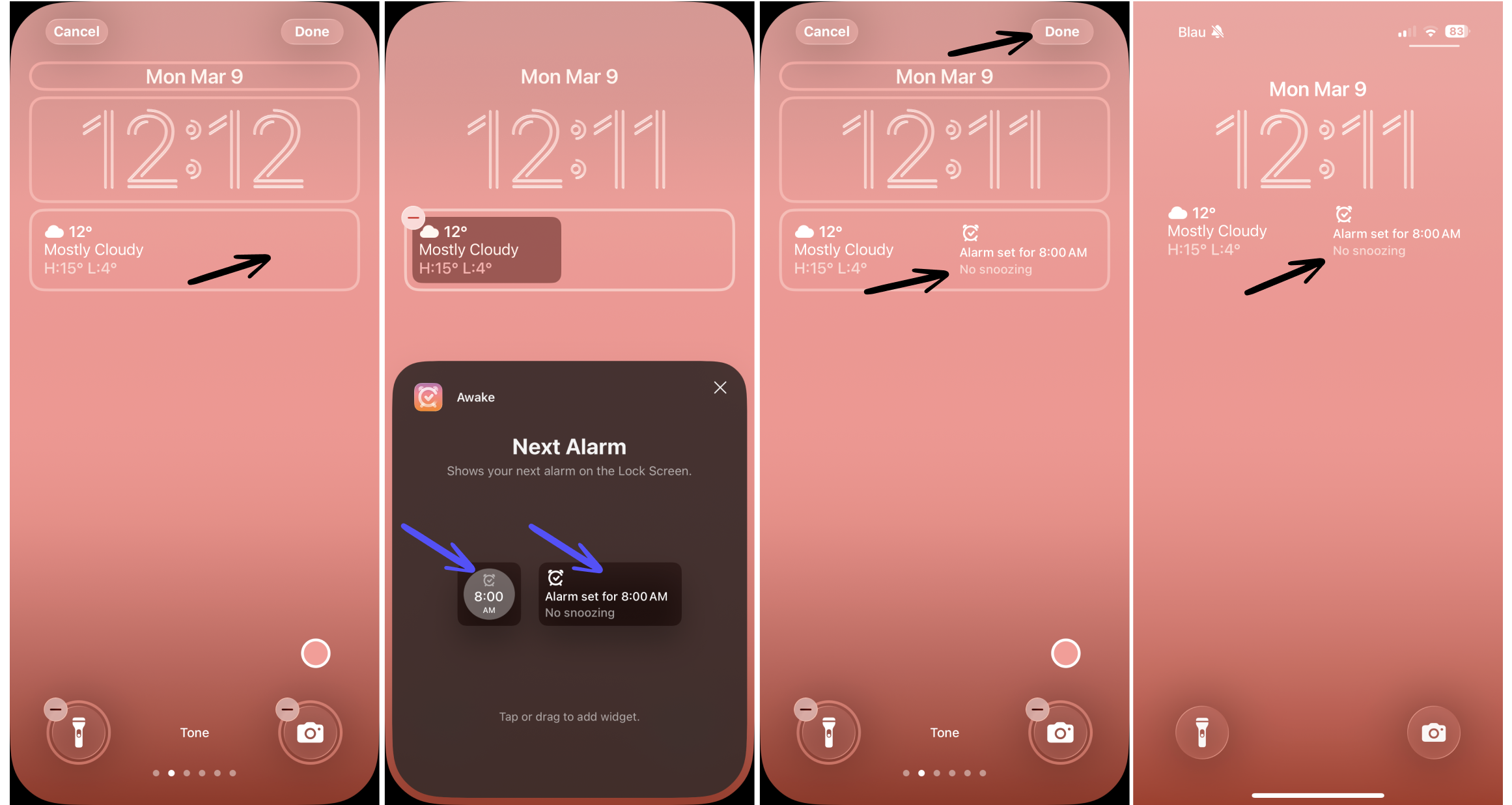
To add a lock screen widget, follow these steps:
Tap and hold your Lock Screen until it enters editing mode.
Tap customize at the bottom of the screen.
Tap in the widgets field to open the Add Widgets option.
Select Awake from the list of apps and choose a widget.
Drag the widget to your preferred placement on the lock screen.
Tap Done in the top-right corner.
2.3 Remove Lock Screen Widgets
To remove a widget from your Lock Screen:
Touch and hold your Lock Screen until the customization screen appears.
Tap Customize.
Tap the widget.
Tap the minus button in the top left corner of the widget you want to remove.
Tap Done to save your changes.